
The player is the same for channels, movies and episodes. A tap or a mouse movement shows the controls; they hide by themselves.
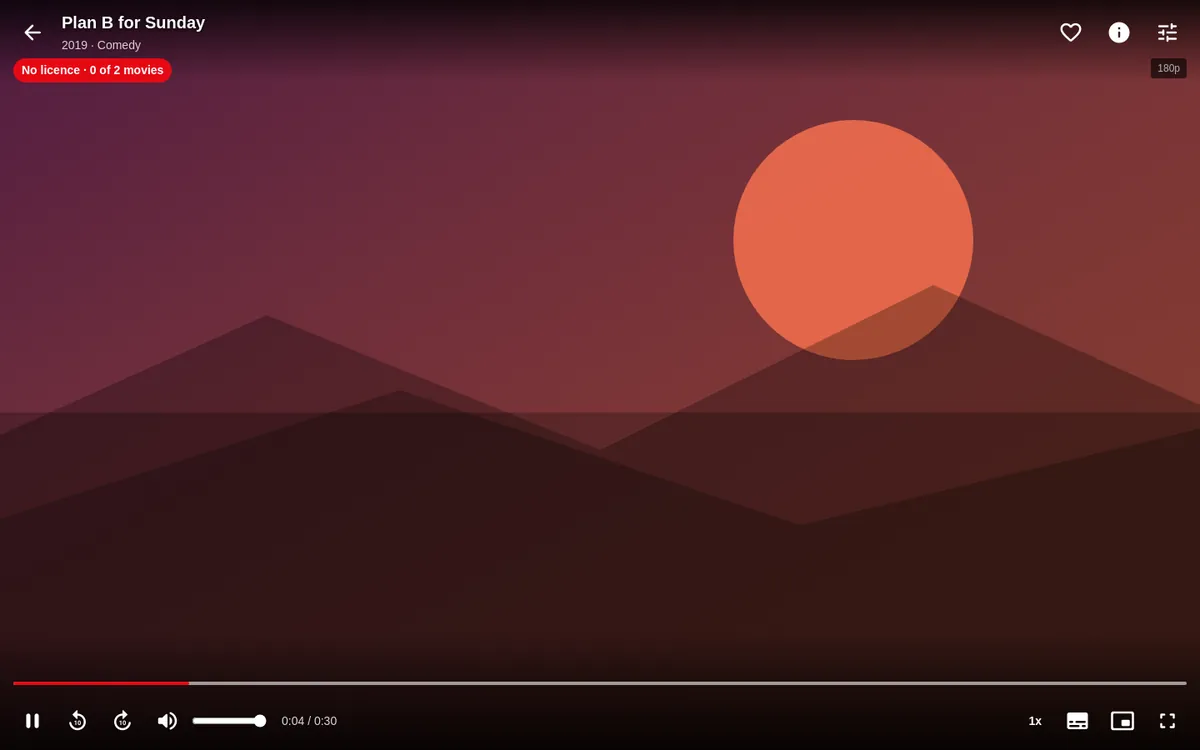
On-screen controls
Top: Back, title, the heart (add to or remove from My List), Info, Channels (live) or Episodes (series), “Cast to TV” (Android phone only) and “Playback settings”.
Bottom: progress bar (drag to skip; with “Thumbnail while seeking” you see a preview), previous / pause / next, ±10 s (movies and episodes), volume, time, LIVE / GO LIVE, speed, “Next episode”, Audio and subtitles, picture in picture and full screen.
The heart saves what you are watching: for a channel, the channel; for a movie, the movie; and for an episode, the series.
On TV, with the default “clean” controls, the top bar keeps only Back, the title, the heart and ⋯ More options, and the bottom bar Play/Pause, the time, the bar and Audio/Subtitles. OK with the controls hidden pauses, and another OK resumes. To move through the film, press ▲ from the Play button: the bar gets the focus with a large knob, ◀ / ▶ move it (hold to go faster) with the time above, ▼ goes back to the button and OK on the bar pauses or resumes.
Keyboard and remote
| Key | Action |
|---|---|
| Enter / Space | Activates the focused button (Play/Pause by default). K pauses. |
| ← / → | −10 s / +10 s. If you hold the arrow, it goes faster and faster and jumps when you release. J / L do the same. |
| ▲ / ▼ | Next / previous channel (live). |
| 0-9 | Jump to a channel by number. |
| M | Mute. |
| F | Full screen (on Windows, also F11). |
| I | Info. C: channel list. |
| Esc / Back | Exit. |
| Media keys | Play/pause, stop, next/previous and fast-forward or rewind (±30 s). |
With the mouse, one click on the video pauses or resumes and a double click switches to full screen.
Phone gestures
- One tap: shows or hides the controls.
- Double tap on the left: −10 s. On the right: +10 s. In the centre: pause.
Audio and subtitles
Press the CC icon. You will see the audio tracks and the subtitles (with “Off” and the file's embedded tracks). The audio and subtitles you choose are remembered for that series.
If you have set up an OpenSubtitles key (Settings), “Find subtitles online” appears on movies and episodes: you choose the language, see the results (with download counts, “Hearing impaired”, “Machine translated”) and, once loaded, you can sync them by moving them half a second earlier or later.
Skipping the intro
With Jellyfin, Emby or Plex servers that mark the intro and credits, “Skip intro” and “Skip credits” appear. On any other series you can mark the intro yourself from Audio/Subtitles → “Series intro” (“The intro starts here” / “The intro ends here”) and it is skipped in all its episodes.
Playback settings
The settings icon (⚙) lets you choose the channel variant (SD, HD, FHD, “Automatic”), the quality, the speed (0.5x to 2x, in movies and series), the picture fit (“Fit” / “Fill”) and view the playback stats.
Next episode
As the end approaches, the player offers “Watch credits” and “Next episode”; when it ends, the button fills over 10 seconds and jumps by itself (“Cancel” stops it). It is configured with “Autoplay next episode” and “Next episode prompt” (Settings → Playback).
Resuming
The position is saved every 5 seconds and when you exit. On the detail page you will see “Resume · mm:ss” and “From the beginning”.
Play with another app
On Android, Android TV and Fire TV you can send the video to another player on the device (VLC, MX Player, Just Player…): in ⋯ More options (or the player settings), on the button of the error screen and in the ⋯ menu of the movie's page. The other app opens the video where you were and Filoteca pauses. Handy if a video does not look or sound right.
Picture in picture
On a phone with the native player, the system's floating window. On Windows, the browser's. It is not offered on TV.