
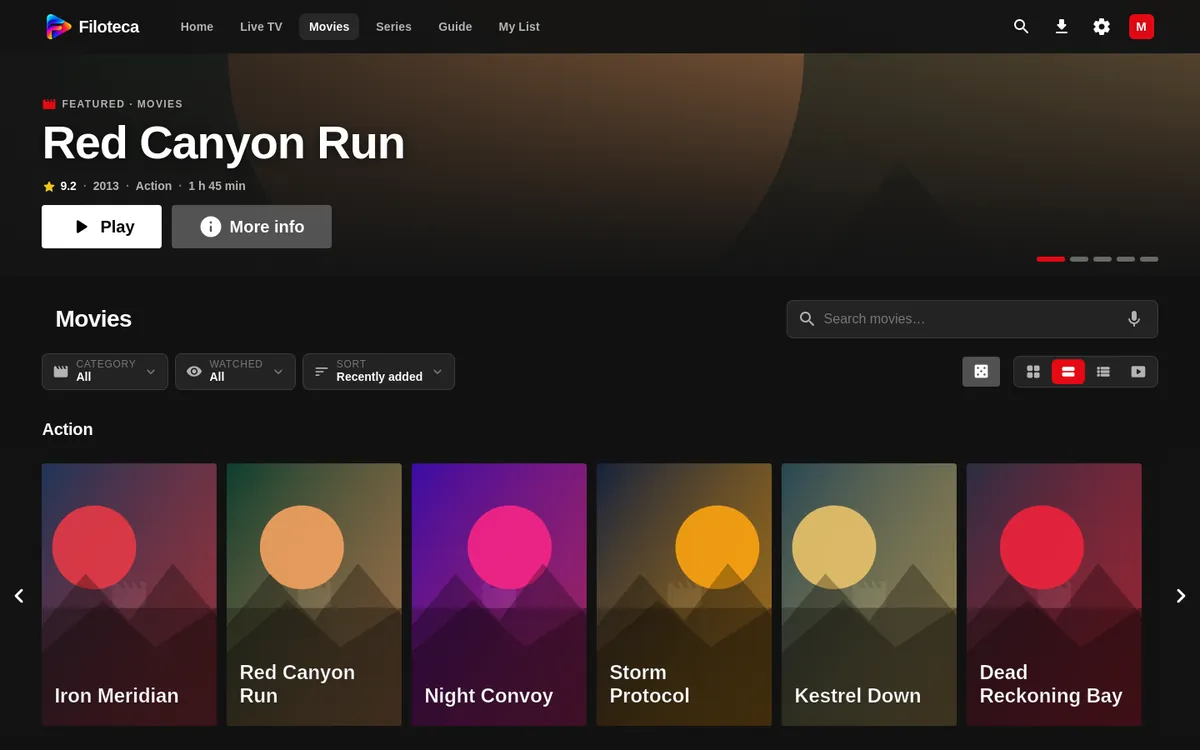
The Movies and Series sections show the catalogue from all your sources together. At the top you have the filters, the views and the sort button.
Filters and sorting
| Control | What it does |
|---|---|
| Country | Filters by the title's country, or by a whole continent. |
| Provider | Only appears if you have several sources. |
| Category | Multiple selection: “All” or “{n} categories”. |
| Watched | “All”, “Unwatched” or “Watched”. |
| Sort | “Recently added”, “Name”, “Rating”, “Year”, “Recently watched”, “My row order” and “Arrange my way…”. |
With “Arrange my way…” you reorder the rows however you like: with the ⋮⋮ handle and the ▲▼ arrows, or with OK to pick up and drop on a TV. To go back to the provider's order, reset it. The quality filter (4K, Full HD…) exists only in Live TV; in movies and series the quality appears as a badge next to the year and the rating.
The dice button (“Surprise me”) picks a random title from the ones you have filtered.
Views
- By category (the default): one row per category.
- Grid: posters in a grid.
- List: compact rows.
- On screen: a large background image with a muted trailer and the row of posters below.
If you leave the cursor or focus on a card, it expands with more details (the “Hover card” setting); holding OK turns on the preview sound.
A movie's detail page
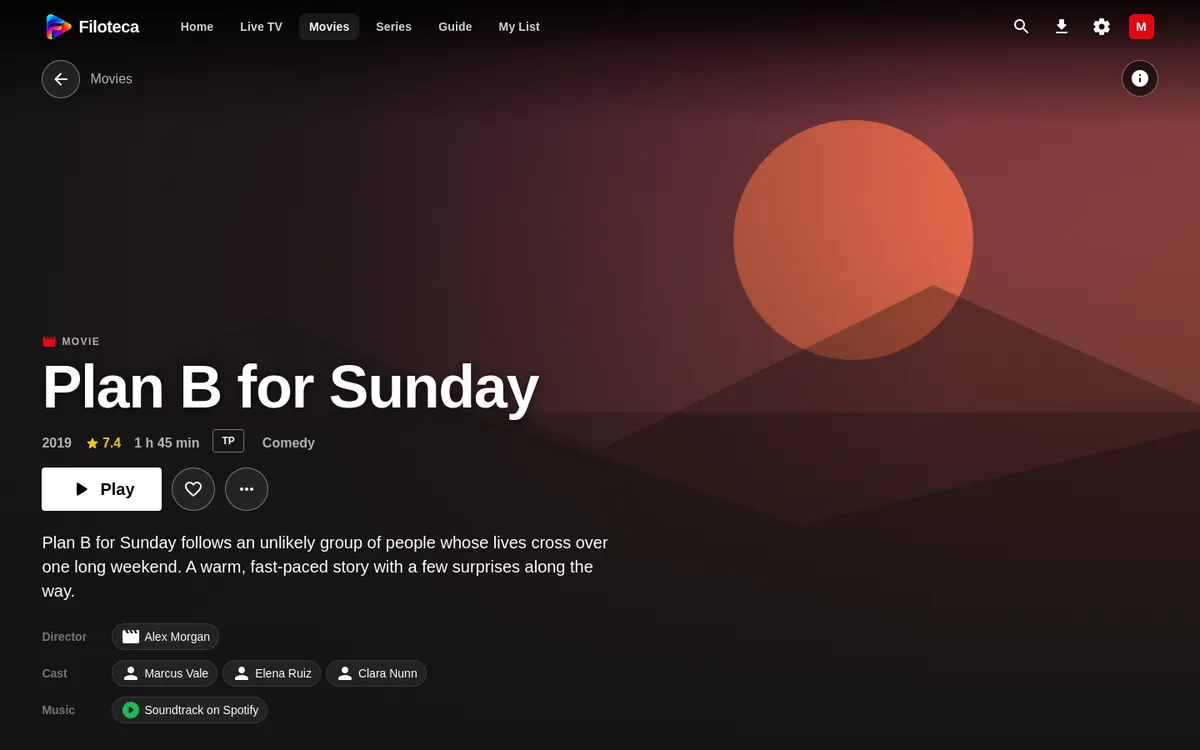
- Play (or Resume · mm:ss and From the beginning if you have already started it).
- Trailer (if the “‘Trailer’ button on the title page” setting is on).
- Heart: adds to or removes from My List.
- Watch on…: play on another screen (only with a paired TV; Premium feature; more).
- More info (i): synopsis, facts, links and ratings.
- ⋯ menu: “Mark as watched / unwatched”, “Download”, “Speed test”, “Share”, “Edit details”, and more.
- The “More like this” row suggests similar titles.
If the title's age rating is higher than your profile's, you will see “Not available on this profile” and there will be no play buttons (Profiles and parental controls).
On a phone you can swipe sideways on the detail page to move to the previous or next title in the list.
A series' detail page
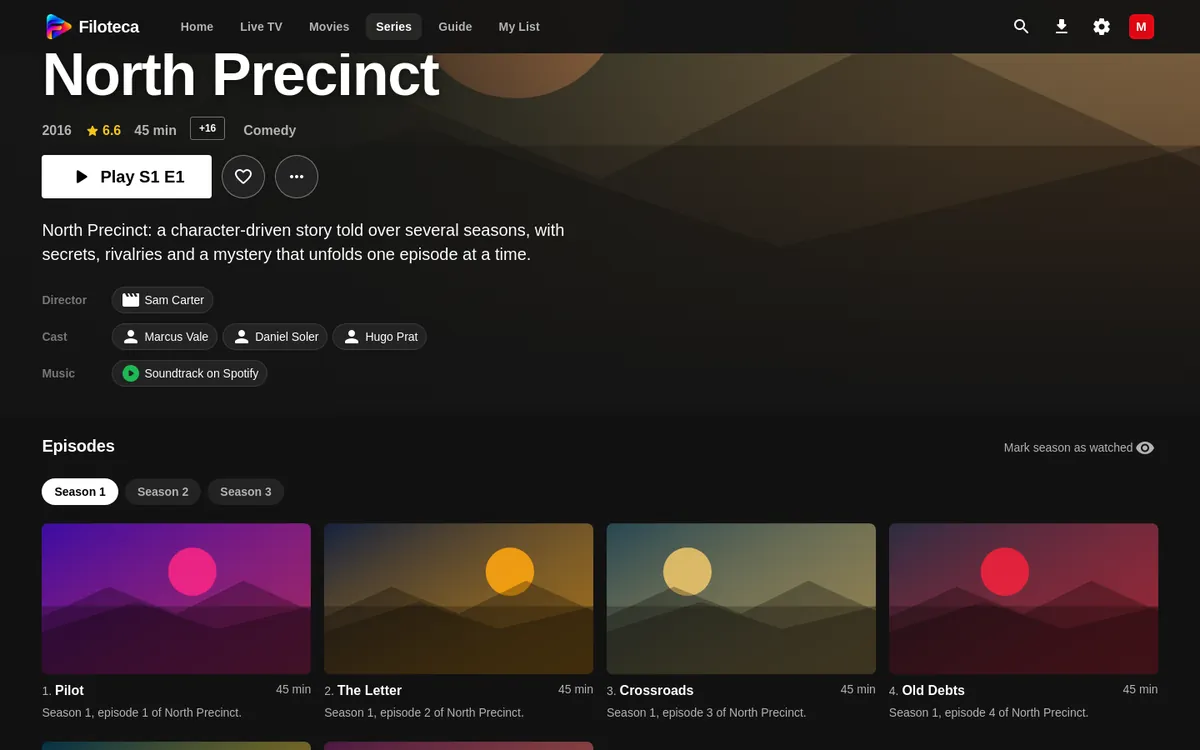
- The main button is “Continue S{n} E{n}”, “Play S1 E1” or the next episode.
- Choose the season with the buttons and browse the episodes; each one has the “Mark as watched” eye and its download button.
- “Mark season as watched” marks the whole season at once. A series counts as watched when all its episodes are.
Titles in several sources
If a title is in more than one source, the detail page says so (“also in…”) and the others act as an automatic backup: if one does not respond, the player tells you and tries another.
Versions of a title
If the same title appears several times in the catalogue (in another language, “ES|…” and “NL - …”, or in another quality), Filoteca recognises it by its TMDB record or by name and year. Tapping it opens the version in your preferred audio language (and, all else equal, the best quality); if you had already started another one, that one continues. On the detail page, above the Play button, “Version” shows buttons (“Spain”, “Netherlands”, “Spain · FHD”…) to switch to another.
What data you see
Artwork and detail pages come from your sources and are completed with Filoteca's catalogue and, if you set it up, with TMDB and OMDb (ratings from IMDb, Rotten Tomatoes and Metacritic). Titles appear without the provider's tags ([ES], |4K|…), which are shown separately as country and quality. See Data and privacy.