
The Search button (the magnifying glass) searches your channels, movies and series at the same time, and also people (actors and directors).
How to search
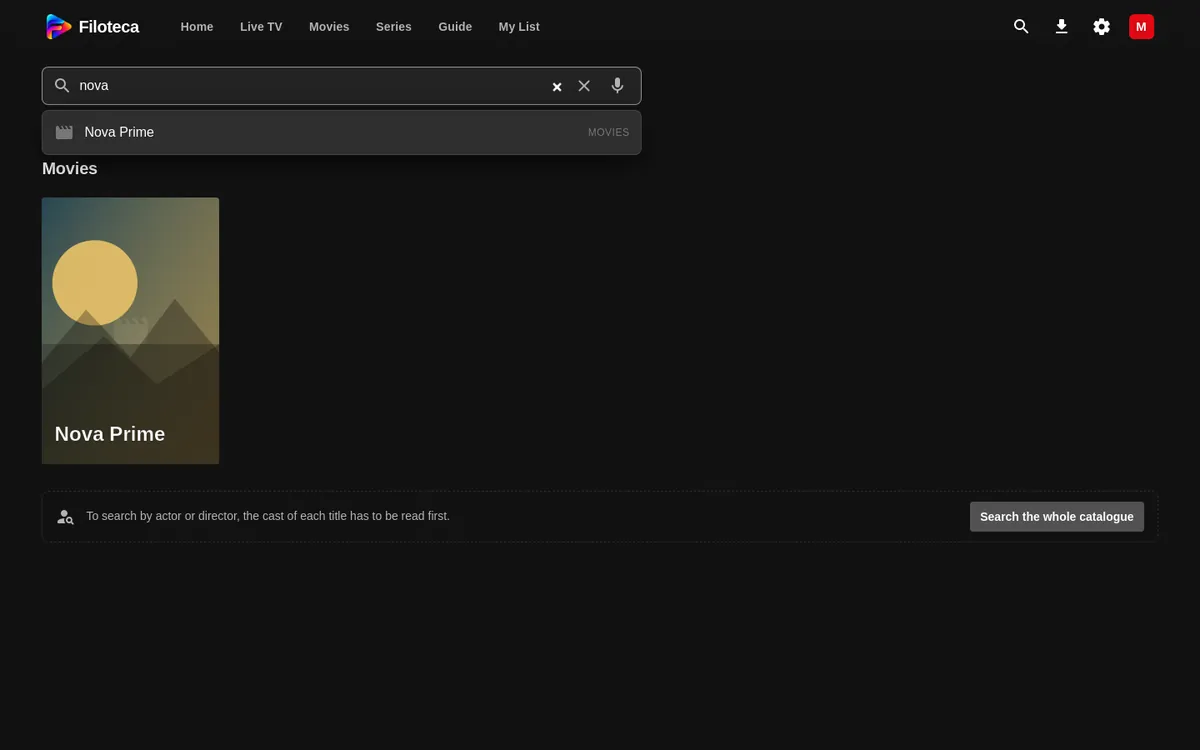
- Open Search and type at least 2 characters in the “Channels, movies, series…” field.
- As you type you will see suggestions, from your history and from titles.
- Choose a result to open its detail page or play the channel.
Below the field are your “Recent searches”, with a button to “Clear history”. There are no filters in search: to filter, use the Movies, Series and Live TV screens.
Search by voice
The microphone button (“Search by voice”) depends on the device:
- Android phone: it uses the system speech recognition (the Google window). If it asks, allow the microphone.
- TV: there is no dictation in the app, because the remote itself already has a microphone.
- Windows: there is no button; you can dictate with the system features (Win+H).
Search by actor or director
To search by cast, Filoteca has to read the detail pages. The first time it offers “Search the whole catalogue”, which goes through the detail pages (you can stop it). With a TMDB key it also looks up their filmography and matches it against your catalogue.
Typing on the TV
When you press OK on a TV's search field you can choose “Type with your phone” (you scan a QR code and type on your phone) or “With the TV keyboard”.
Sharing a search
An address of the form …/search/?q=text opens the app with the search already done.