The first time you open Filoteca you go through three screens, in this order: terms of use, the welcome tour and “Add a source”.
1. Terms of use and privacy
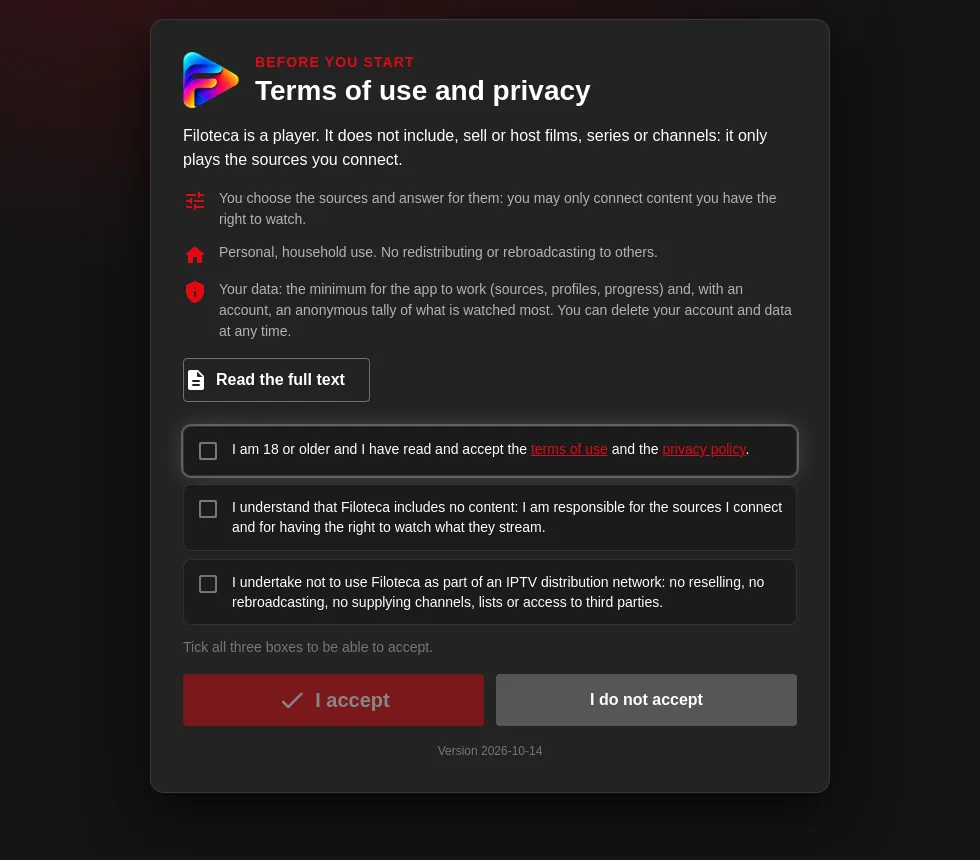
This comes first; the app cannot be used without accepting them. You will see a summary in three points: Filoteca is a player with no content, use is personal and household, and only the minimum data is stored.
To continue you must tick three boxes:
- You are 18 or older and have read and accept the terms of use and the privacy policy.
- You understand that Filoteca includes no content and that you are responsible for the sources you connect and for having the right to watch what they play.
- You undertake not to use Filoteca as part of an IPTV distribution network.
Then press “I accept”. With the “Read the full text” button you can read the complete documents. If you press “I do not accept”, the app cannot be used and it offers to let you read them again or exit. If the terms change version, you will be asked again.
2. Welcome tour
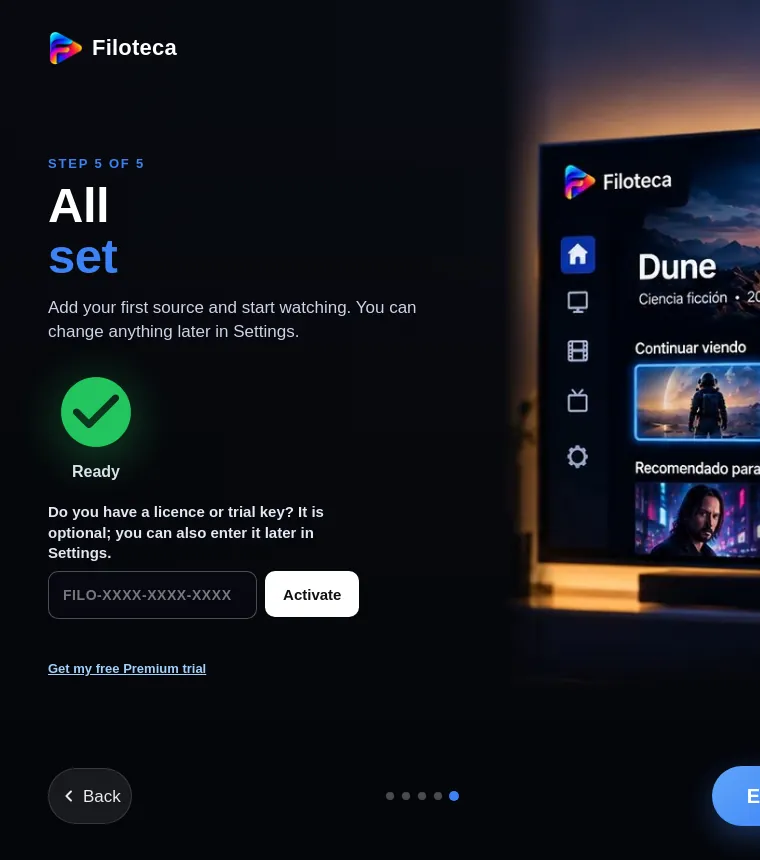
It is five short screens with the main ideas. Move through them with “Next” and “Back”, or press “Skip” to go straight on. It only appears the first time and while you have no sources; you can review it whenever you like in Settings → “Watch the intro”.
On the last screen, if you do not have a licence yet, there is an optional field: “Do you have a licence or trial key?”. Enter the key FILO-XXXX-XXXX-XXXX and press “Activate”, or do it later in Settings. If you do not have a key yet, there is a link to request the free Premium trial (how it works).
3. Add a source
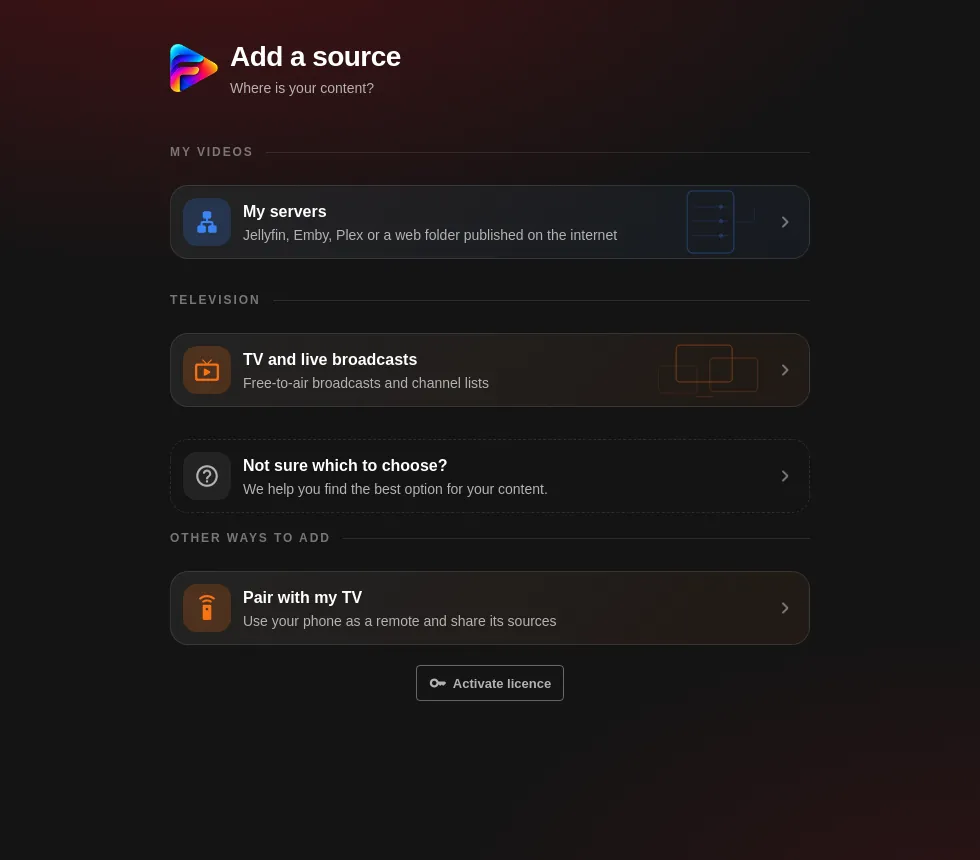
The question is “Where is your content?”. Here you choose the source type (full guide). Below there are other ways to get started:
- Search my network: finds media servers in your home.
- Add from your phone: you type the details on your phone and they appear on the TV.
- Pair with my TV or Bring my providers from the TV: to move your sources between devices.
Further down are the “Activate licence” and “Check for updates” buttons.
Updates
- Manually: Settings → More → About → “Check for updates” (there is also a button on the home screen when you have no sources). If there is a new version, the app asks whether you want to download and install it; if not, it says “Filoteca is up to date”.
- Automatically: the “Notify about new versions” setting checks when you open the app, at most once a day, and is on by default.
- What's new: Settings → “What’s new” shows what each version brings.
- On Android it downloads the APK and opens the system installer (it will ask for permission to install the first time). On Windows it reinstalls itself. Your data is kept.
Something not working?
From Settings → More → About → Support (it needs an active licence) you can write to us directly.