
Live TV has the channels from all your sources. It works the same with an M3U list, an Xtream account, a Stalker portal or a tuner.
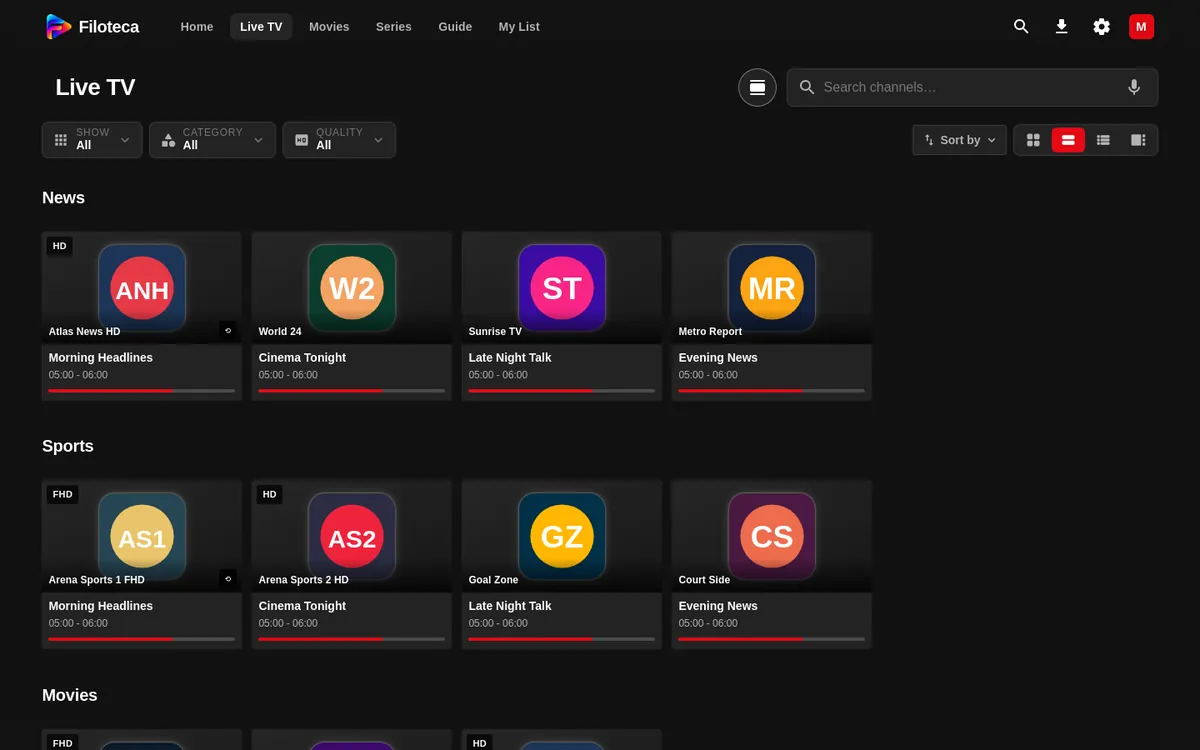
Views
- By category (the default), Grid and List.
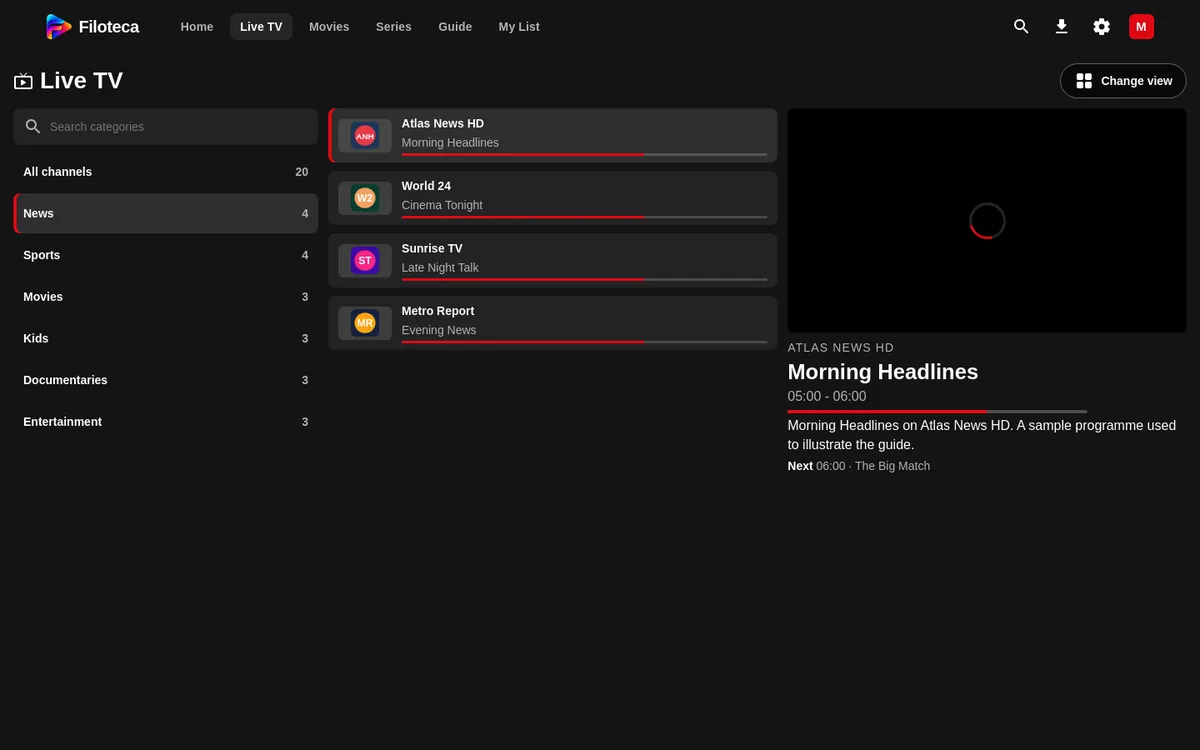
- Panel with preview: three columns (categories, channels with what they are broadcasting now, and a small window with the channel and its schedule). It is only offered on a TV or wide screens. OK, or tapping again, opens the channel full screen.
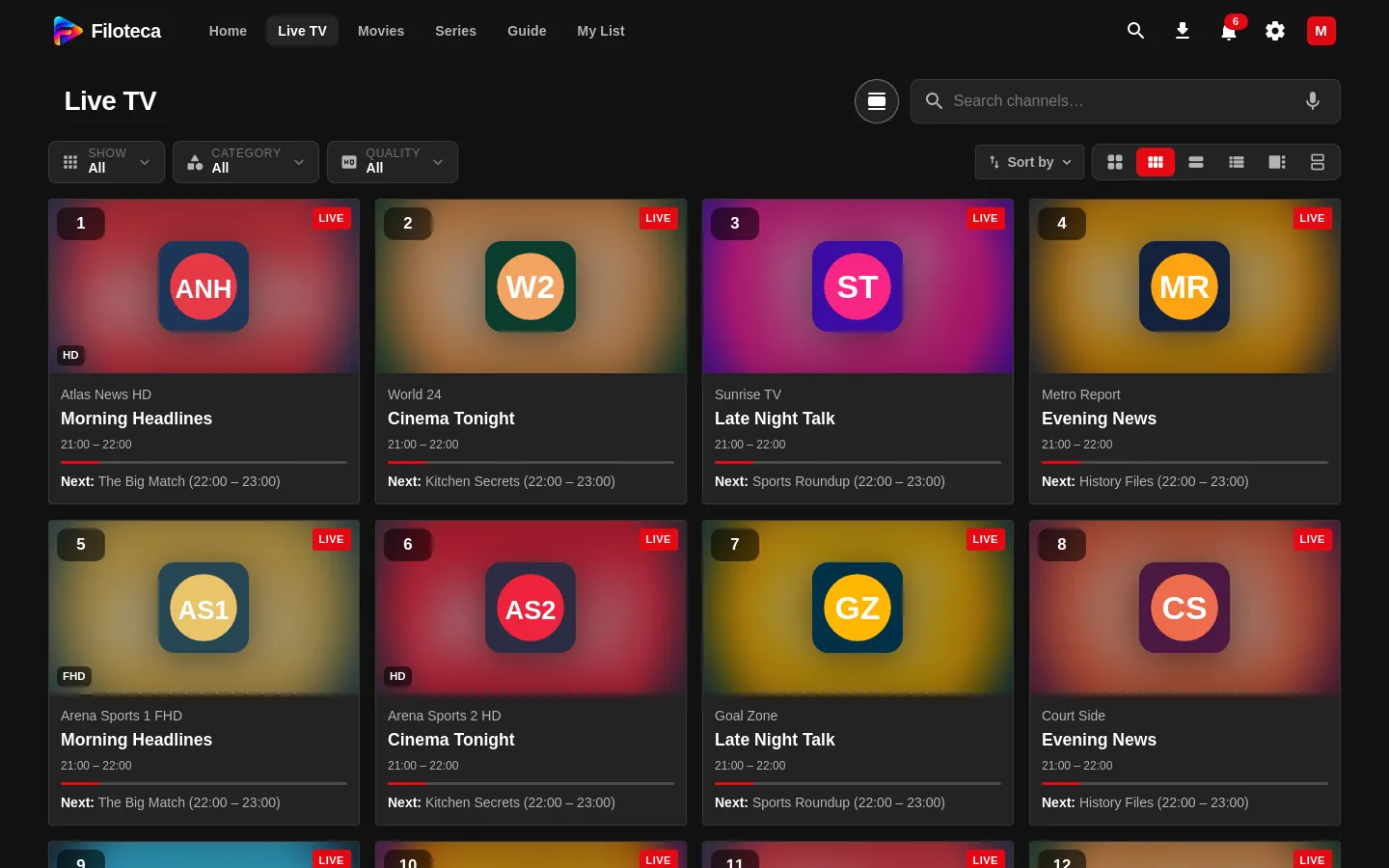
- Mosaic: large thumbnails with the channel's logo and number, the “LIVE” badge, what is on now with its times and progress bar, and what comes next. Pressing one plays the channel.
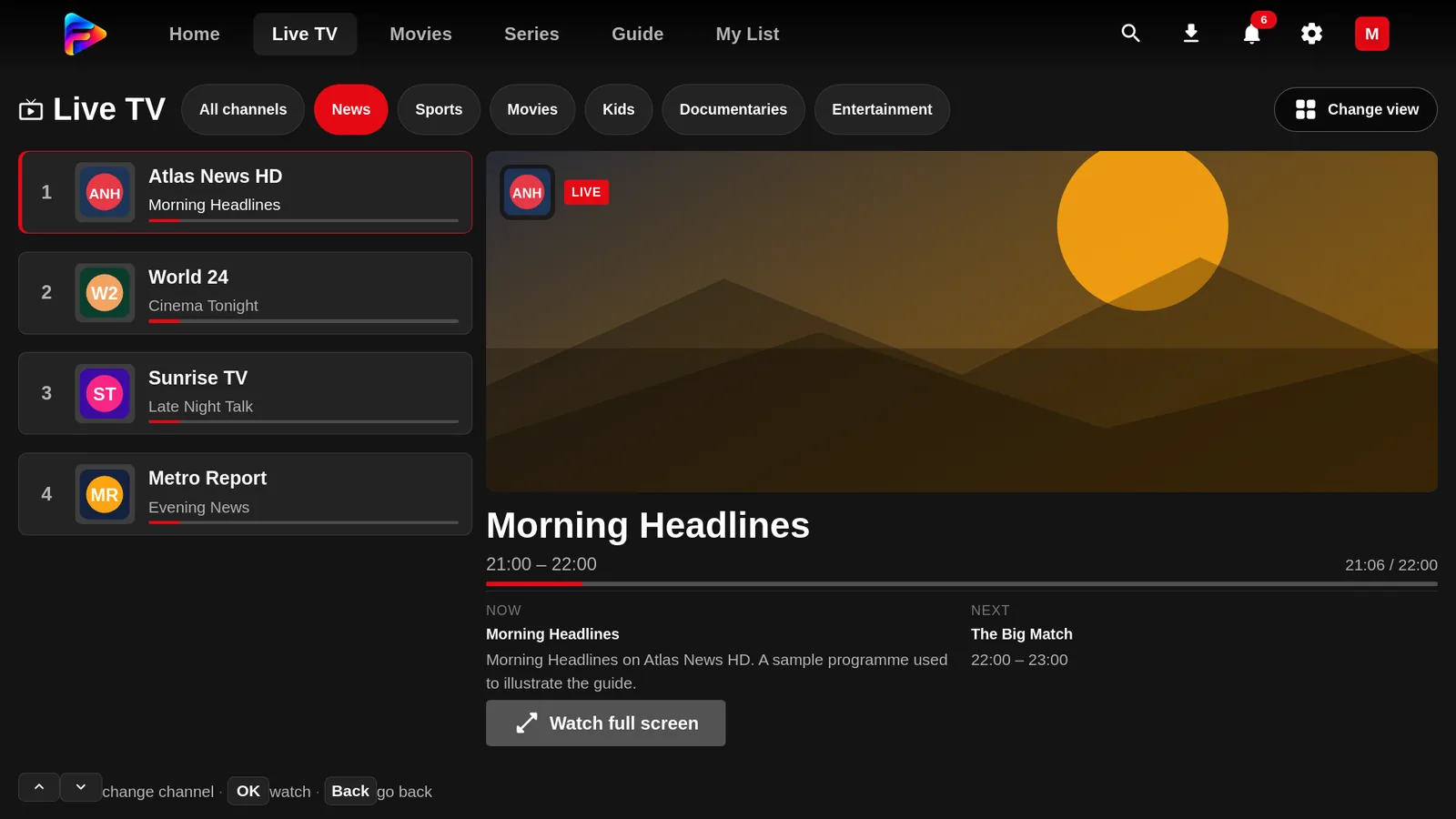
- Zapping with list (only on a TV or wide screens): the categories as chips at the top (with “Favorites” if you have any), the channels numbered on the left and, on the right, the channel in a large window with what is on now and what comes next, and the “Watch full screen” button. Moving through the list changes the channel on the right; OK, or tapping again, opens it full screen.
- You change view with the buttons next to “Sort by”; the one that opens by default is chosen in Settings → Playback → “Live TV view” (Playback settings).
Search, filter and sort
- “Search channels…” field.
- Show: “All”, “Favorites”, “Recent” or a specific source.
- Country, Category and Quality (4K, Full HD, HD, SD; multiple selection).
- Sort by: “Provider order”, “Name”, “Recently watched”, “My order” and “Arrange my way…”.
Some channels carry badges: “Only in its country” (outside it may not work), “Not 24/7”, “+18”, “VIP” and “PPV”.
Favourites
Press the + on the channel's card (it turns into ✓), the heart in the player or “Add to My List” in its menu.
Channel menu
Right-click (mouse), long press (phone) or hold OK (TV). It offers Play, Add to My List, Share (not on TV), Programme details, Guide, Move to the start / left / right / the end (in a category row; this switches the list to “My order”) and turning the preview sound on or off.
Changing channel (“zapping”)
| Action | How |
|---|---|
| Next / previous | ▲ and ▼, Channel+ / Channel−, or Page Down / Page Up. With the controls hidden, ▲▼ change channel directly. |
| By number | Type the number (up to 4 digits); it confirms by itself after 1.5 s. If it does not exist, it warns “Channel {n} ✕”. |
| Channel list | The player's “Channels” button or the C key. On a TV, with the controls hidden, OK opens the list without interrupting the live stream. |
Zapping follows the order you see on screen (the row, the panel or the filtered list) and, on reaching the last channel in a category, carries on with the next one. Choosing the channel that is already playing again does not reload it.
Watch from the start (catch-up)
If your provider keeps an archive, “Watch from the start” appears on the programme's detail page and “GO LIVE” in the player to get back. If not, it is not offered.
Live preview
The “Live channel previews” setting is off by default because it uses up one of your provider's connections in the meantime. If your account allows few simultaneous connections, leave it off (Playback settings).
Pausing live TV
With “Pause and rewind live TV” (Settings → Playback, Android and Windows only, off by default) you can pause a channel and go back the last 5, 15, 30 or 60 minutes.