
Filoteca works the same way on every device, but the layout of the buttons changes depending on whether you use a phone, a TV or a PC.
The sections
| Section | What you will find |
|---|---|
| Home | What you are watching, what is new and recommendations (Home) |
| Live TV | Your channels by category, with a preview (Live TV) |
| Movies and Series | The catalogue from your sources, with filters and detail pages (Movies and series) |
| Guide | The programme schedule for your channels (Guide) |
| Search | Search across the whole catalogue (Search) |
| My List | Your favourites and what you have partly watched (My List) |
| Downloads | What you have downloaded to watch offline, if your device allows it (Downloads) |
| Settings | All the options (Settings) |
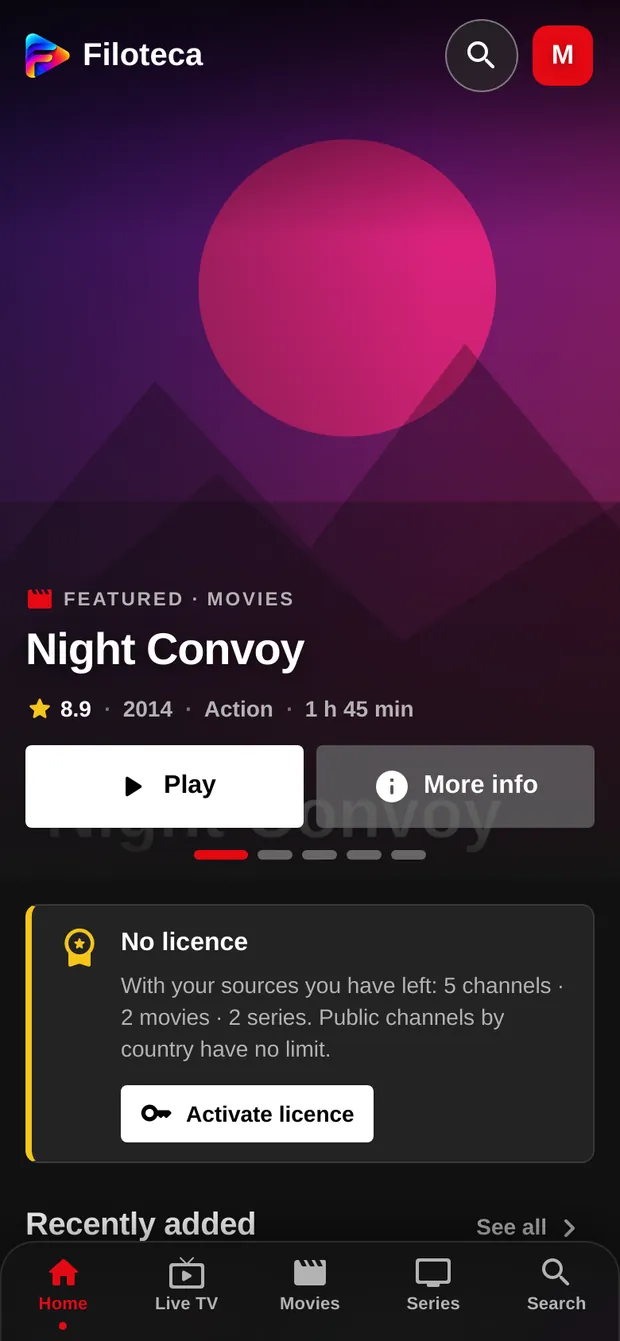
On a phone
- At the bottom there is a bottom bar with Home, Live TV, Movies, Series and Search.
- Guide, My List, Downloads and Settings are in your photo menu (on Home) or under the ☰ button in each section. “Switch viewer” is there too.
- In lists, pull down to refresh the catalogue and the guide.
- A long press on a channel, movie or series opens its options (add to My List, mark as watched…).
On a TV (Android TV and Fire TV)
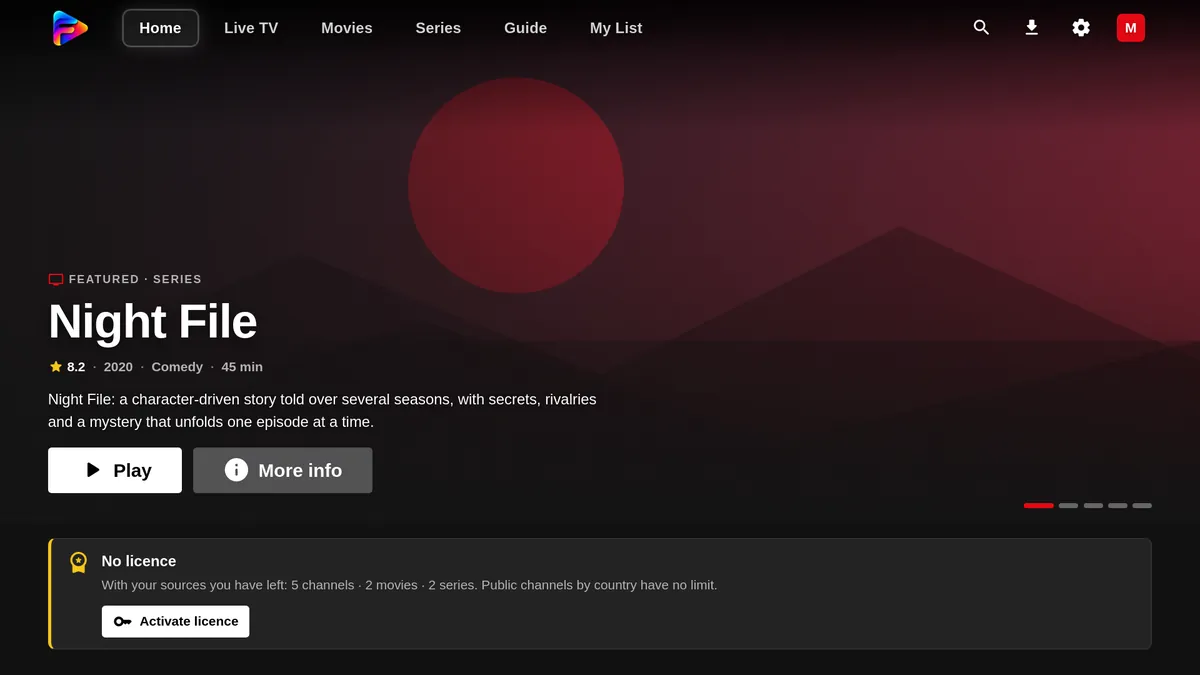
The app is controlled with the remote: arrow keys to move, OK to choose and Back to go back. At the top is the bar with the sections and, on the right, Search, Downloads, Settings and your profile.
- Hold OK on a channel, movie or series to see its options (or use the remote's menu key).
- Back closes the player, returns to Home and, from Home, asks whether you want to exit the app.
- For typing (searches, keys…), the TV keyboard offers “Type with your phone”: a QR code appears, you scan it and type comfortably on your phone.
- On TV, in any look, if you pause for half a second on a tab of the bar (Movies, Series…), its screen opens below without moving the focus: keep going left or right to see another, or press ▼ or OK to enter. While you move along the bar, nothing takes the focus away. You can turn it off in Settings, “Preview while browsing the menu”.
On Windows and wide tablets
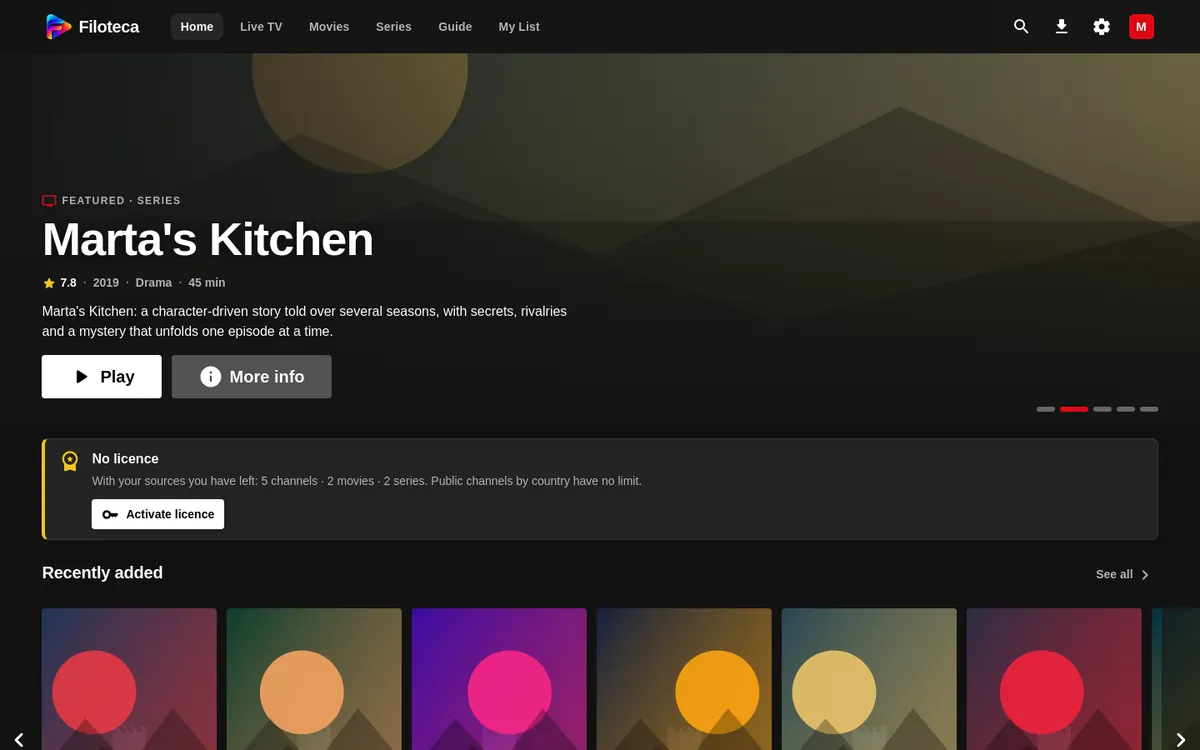
The section bar is at the top, with Search, Downloads, Settings and the profile on the right. It is controlled with the mouse and keyboard; the player's keys are listed in The player.
Notifications (the bell)
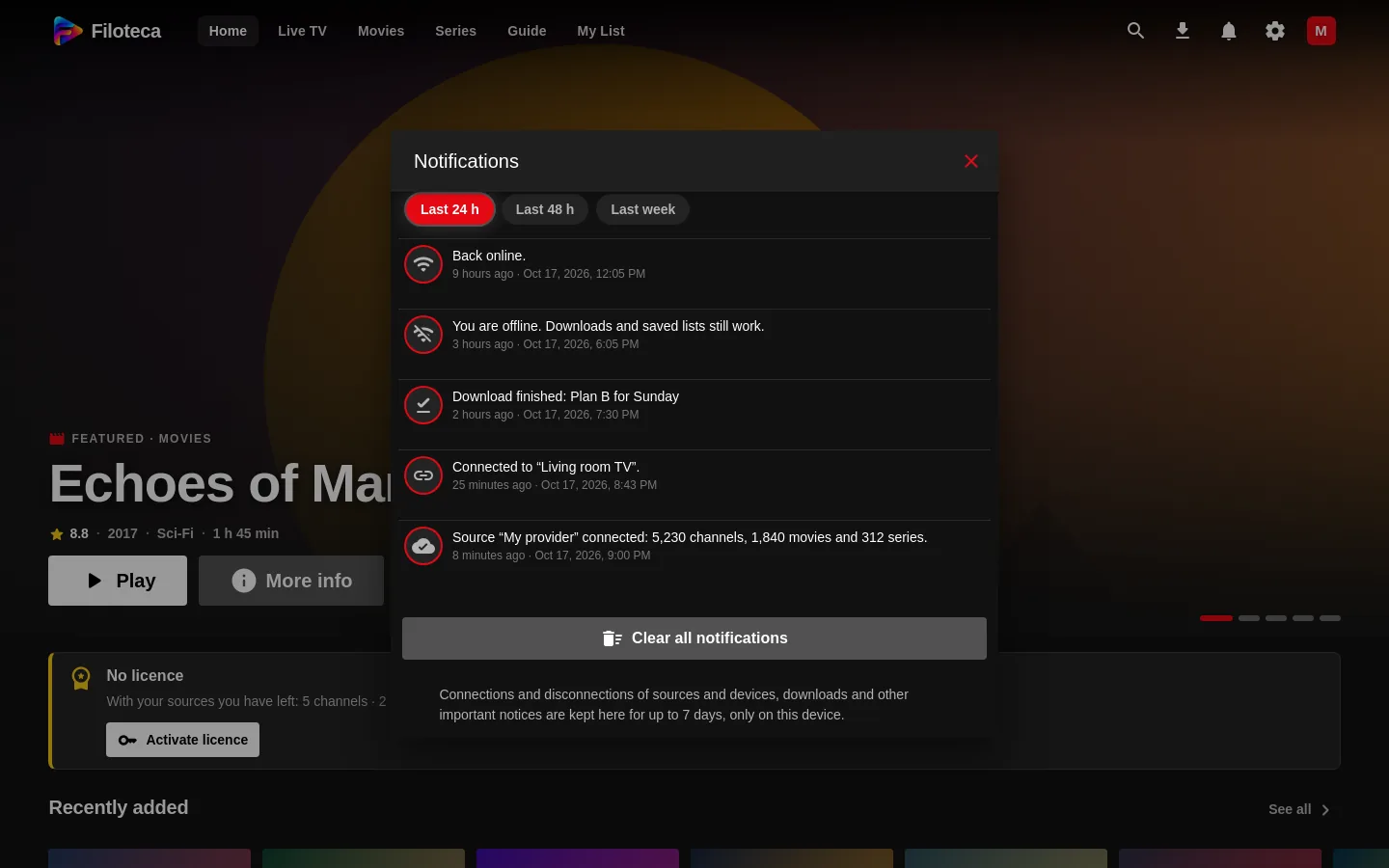
The bell in the top bar (on a phone, on Home and in the ☰ menu) keeps the app's recent notices so you can read them again in full: connections and disconnections of sources and devices, pairing, downloads, licence changes and errors. A number on it shows how many you have not read yet.
- Choose the period: “Last 24 h”, “Last 48 h” or “Last week”.
- “Clear all notifications” empties the list.
- They are kept only on your device, for up to 7 days and 200 notices; they are never sent anywhere.
TV mode and looks
TV mode (10-foot UI) enlarges the interface and is controlled with a remote. It is set to “Auto” (it switches on by itself on televisions) and is changed in Settings → Appearance. The looks (Cinema, Console, Newsstand…) change the layout and move the bar; some are Premium features (Appearance).
There are 23 looks; some, such as Stage and Drive-in, are offered on TV and desktop only.
On-screen tips
The first time you enter each screen, a bubble with a tip appears (for example, “Hold OK on a channel…”). You can see them again under Settings → Appearance → “Show the tips again”.