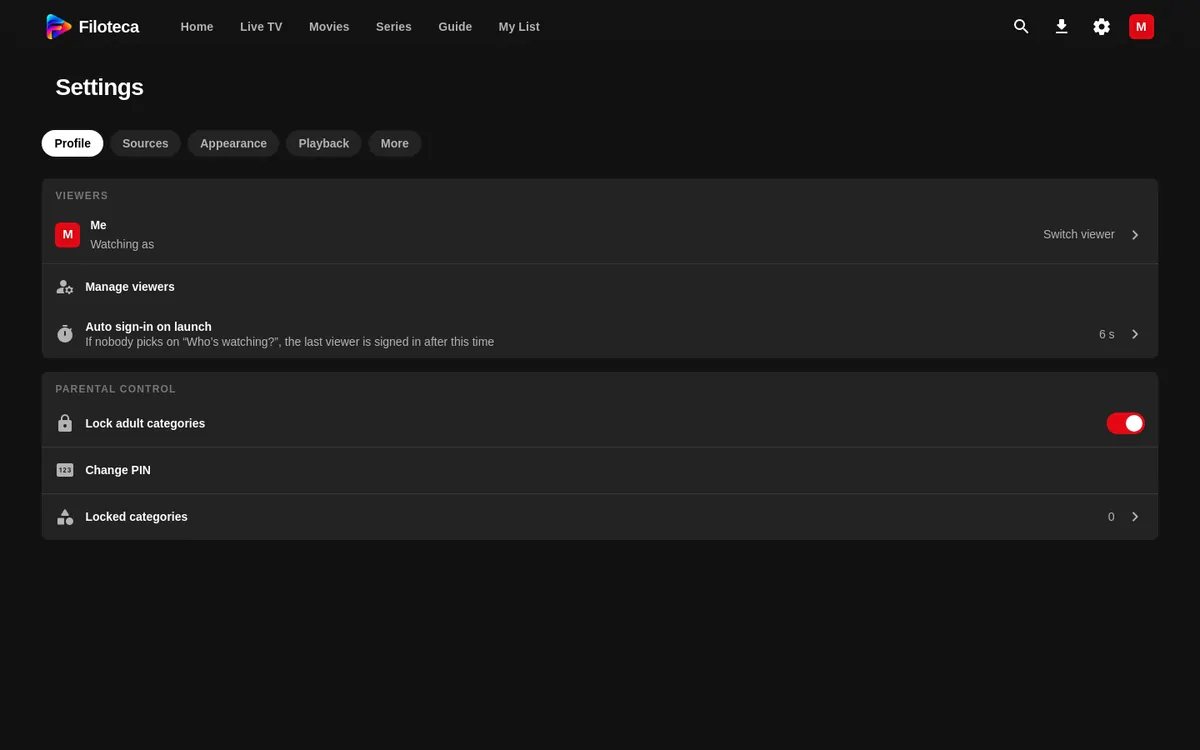
Open Settings with the gear icon (on a phone, from your photo menu or the ☰ button). The options are grouped into tabs:
| Tab | What it contains |
|---|---|
| Profile | Viewers and parental controls (Profiles) |
| Sources | Your sources, data keys and catalogue (Adding sources, Data and privacy) |
| Appearance | Language, design, colours and TV mode (Appearance) |
| Playback | Player, live TV, subtitles and quality (Playback) |
| Devices | Phone remote and syncing (Your phone as a remote) |
| More | Diagnostics and “About”: licence, updates, support (About) |
Tabs with no options for your device do not appear.
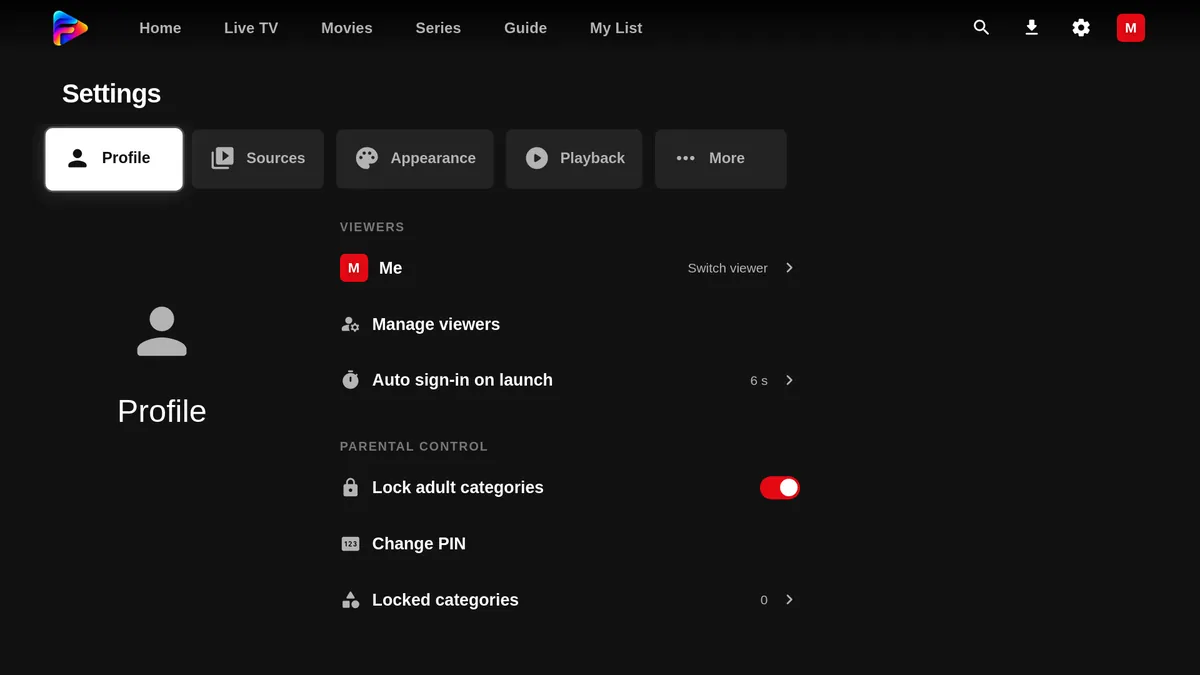
Settings on a TV
On a TV, the settings have the Fire TV style (it can also be turned on for other devices with “Fire TV-style settings and menus”, under Appearance):
- At the top, a row of sections: moving onto one opens it.
- In the centre, the list of settings; on the right, the explanation of the one that has focus.
- OK or ▶ enters and activates; ◀ goes back without changing anything; Back goes up one level.
- The values appear to the right of each setting; when you choose it, its options open in the column on the right.
PRO and PREMIUM labels
Settings that require a licence appear dimmed with a PRO or PREMIUM label. When you tap them, the app explains what is included and, during the beta, offers “Get Premium for free” (the beta and the licence).
What comes with a licence
| Feature | Licence |
|---|---|
| Interface styles and accent colours | Any licence |
| More than 2 viewer profiles (up to 5) | Any licence |
| Filoteca Connect (phone as remote, “Watch on…”, “what is playing”) | Premium only |
| Syncing your devices | Premium only |
| Recording channels, sharing sources and TMDB with your own key | “Coming soon” |