
A source is the place Filoteca takes your content from: a channel list, an account with your provider, your media server, a folder on your network… Filoteca brings no content of its own: with no sources you will only see the free-to-air channels.
Add a source
- Open Settings → Sources → “Add source” (on the first run, the “Where is your content?” screen appears by itself).
- Choose the source type from one of the four groups.
- Fill in the form and press “Connect”. While it tests the connection you will see “Connecting…”.
- If the connection works, the app says “Connected successfully” and starts loading the catalogue.
If you are not sure which to pick, use “Not sure which to choose?” on the same screen.
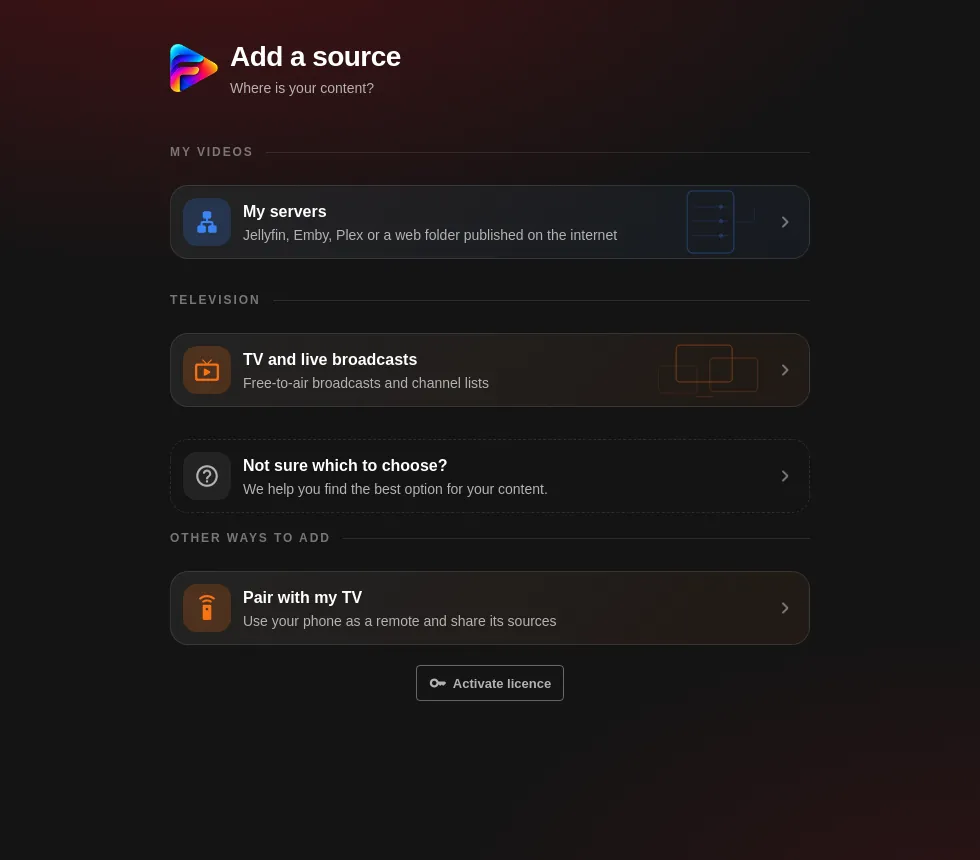
Source types
| Group | Type | What it offers | Guide |
|---|---|---|---|
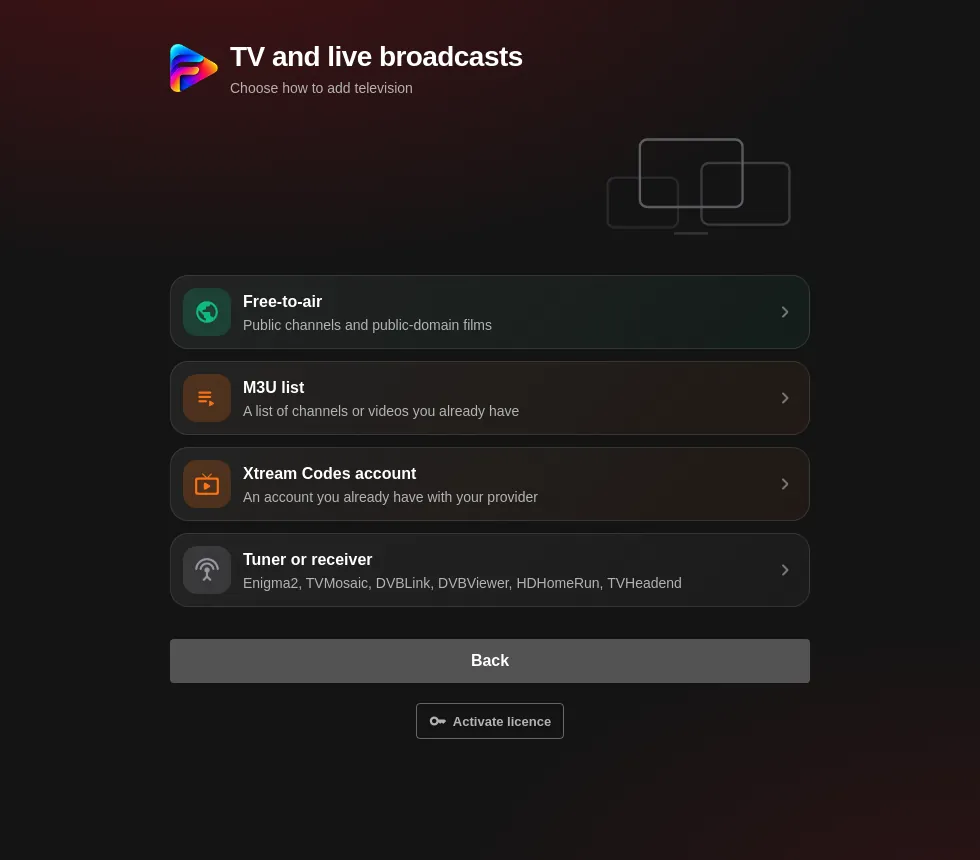
| TV and live broadcasts | Free-to-air (digital terrestrial TV, radio, classic cinema, channels by country) | Live channels and films | View |
| M3U list | Channels, movies and series depending on the list; optional EPG guide | View | |
| Xtream Codes account | Channels, movies, series and EPG guide | View | |
| Stalker portal (MAG) | Channels, movies and series | View | |
| Tuner or receiver | Live TV only | View | |
| On my network | Jellyfin, Emby, Plex | Movies and series from your server | View |
| DLNA, SMB, FTP, SFTP, WebDAV | Movies and series from your folders | View | |
| On this device | Folder on this device | Your local videos | View |
| In the cloud | Dropbox, OneDrive | Videos from your cloud storage | View |
Availability: SMB, FTP, SFTP, DLNA, local folder and the Stalker portal only exist in the Android/Fire TV and Windows apps; they are not in the web demo.
Several sources at once
You can have as many sources as you like. One is the main one (it keeps your list and your progress) and the others can be added to the catalogue to contribute their titles; if a title appears more than once, the other source acts as a backup when one fails.
Managing sources
In Settings → Sources you will see each source with its type, its status and how many channels, movies and series it has. Statuses: “Active”, “Expiring soon”, “Expired”, “Disabled”, “Not responding” and “Credentials rejected”. On each source (the ⋮ button or the source card itself):
- Make main.
- Update catalog: downloads the channels, movies and series again.
- Check now: tests the connection and the subscription (not available on M3U lists or the free ones).
- Edit source: change the name, the address or the credentials.
- Duplicate: creates a copy (“… (copy)”).
- Choose what to import (Xtream accounts): pick the categories you want.
- Delete source: removes the source and its data stored in the app (if it has downloads, they are deleted too).
- A switch to turn the source on or off. If you turn off the main one, another one becomes main; the only source cannot be turned off.
The “Personal videos (no TMDB)” checkbox (folders and clouds) stops the app looking up artwork and detail pages for home videos.
If it will not connect
- “Wrong username or password, or inactive account.” Check the details and that your subscription is still active.
- “Could not reach the server. Check the URL…” Check the address (with
http://orhttps://and the port) and that the server is switched on. - If the source is on your local network, the device has to be on the same network.
- If the server blocks the app's direct connection, the proxy setting (in Settings) may help.
The specific messages for each type are in its guide.